Sectional charts
Navigator can draw your route on a VFR sectional underneath the live gauges, and keep the chart on the device so it works with no signal at altitude.
The sectional is situational context next to the timing gauges — it is not certified for navigation, has no terrain, airspace or traffic awareness, and the chart on your iPad is only as current as the last time you updated it. Navigate with your normal tools.
Where the map appears
The map is iPad only, in a regular-width layout. On iPhone, and on an iPad in a narrow split view, the screen stays as it was: there is no room for a map without shrinking the numbers you read at a glance.
- Portrait: the two hero cards, then the four gauges, then the sectional filling the rest.
- Landscape: the gauges move to a left column (up to 520 pt) and the map takes the full height on the right.
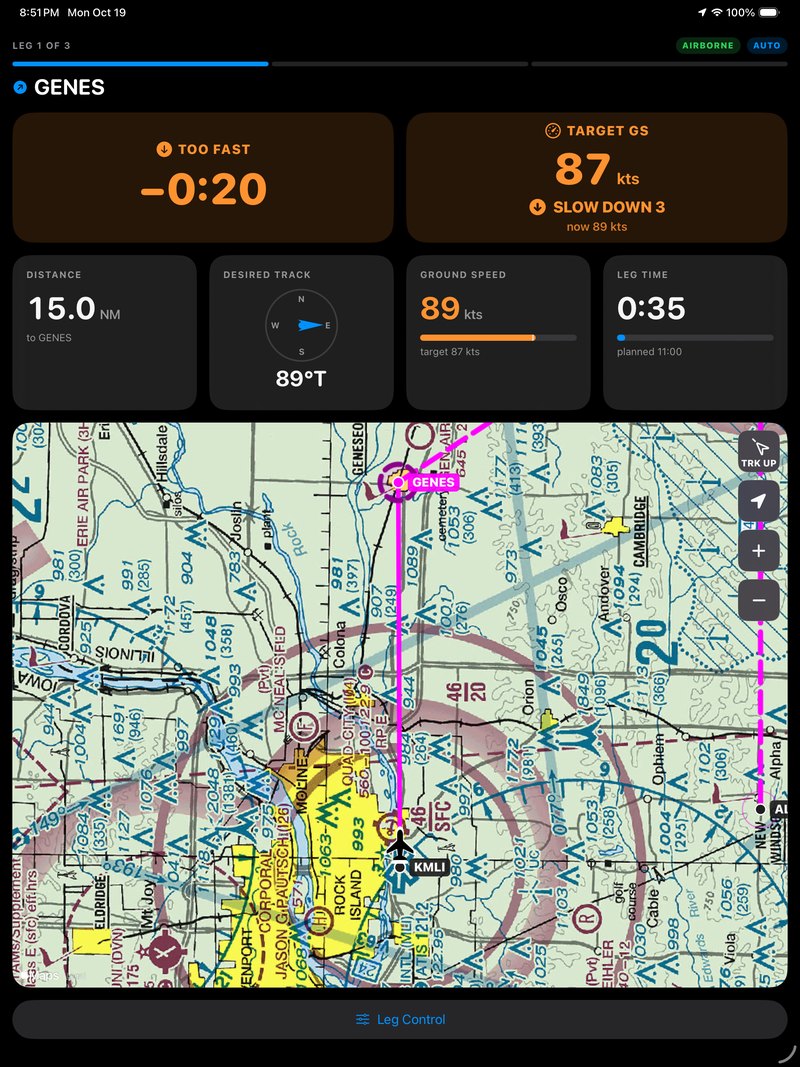
The sectional under the gauges on an iPad, with the route in magenta and the next checkpoint circled.
What's drawn on it
| Element | Appearance |
|---|---|
| Active leg | Magenta, thick |
| Upcoming legs | Magenta, thinner |
| Flown legs | Grey, dashed |
| Checkpoint radius | A circle at each checkpoint |
| Waypoint labels | Next waypoint highlighted |
| Flown track | Blue |
| Aircraft | Symbol at your position, grey and translucent when the fix is stale |
Controls
Four 54 pt buttons sit at the top right:
| Control | What it does |
|---|---|
| N UP / TRK UP | North-up or track-up. Your choice is remembered between flights. |
| Recenter | Resumes following the aircraft. |
| Zoom + / − | Halves or doubles the camera distance. |
Gestures: pinch zooms, and a one-finger pan stops following. Two-finger rotate and pitch are deliberately switched off, so a stray hand in turbulence cannot silently reorient the chart under you.
In track up, the aircraft sits a quarter of the map height below centre, so most of the chart shows what is ahead rather than what you have already flown.
Badges
Three badges can appear at the top left. Each one tells you something the map cannot show you by drawing it:
| Badge | Meaning |
|---|---|
| NOT FOLLOWING · TAP TO RECENTER | You panned away. The map recenters itself after 30 seconds untouched, and the badge counts down. |
| CHART OUT OF DATE · UPDATE IN CHARTS | You are being shown tiles from an earlier 56-day cycle because the service could not be reached. |
| CHART MISSING HERE · NOT DOWNLOADED | Tiles could not be loaded and were never downloaded for this area. |
The chart library
Tap Charts on the Flights screen. The library is on iPhone too — only the in-flight map is iPad-only, so you can manage charts from whichever device is to hand.
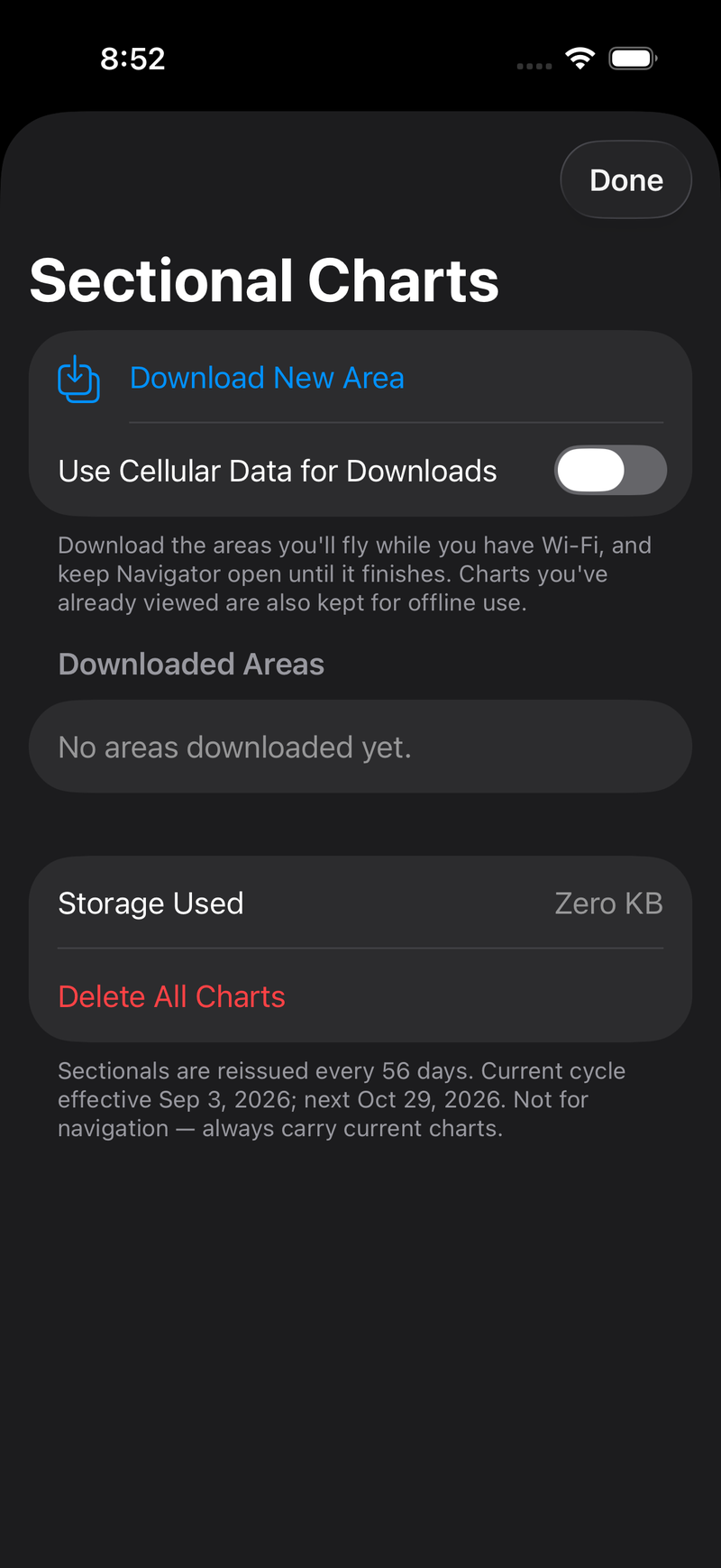
The chart library before anything is downloaded. Cellular is off by default, and the footer tracks the 56-day FAA cycle.
Downloading an area. Frame it on the map and choose a detail level:
| Level | Zoom range | Use |
|---|---|---|
| Standard | 8–11 | Route overview |
| Full Detail | 8–12 | Reading the chart closely in flight |
The screen estimates the tile count and download size before you commit. A region is capped at 40,000 tiles (roughly 1 GB) — a request that large is almost always a mis-framed map.
Managing what you have. Every downloaded area is listed with a status:
| Status | Meaning |
|---|---|
| CURRENT | Matches the current FAA chart cycle |
| OUTDATED | From an earlier cycle; update it |
| INCOMPLETE | A download was cancelled or failed; resume it |
From there you can open an area to view it offline, resume, update to the current cycle, rename, delete, or delete everything.
Checking a route before you fly. The Sectional Chart section on the Start Live Flight screen shows how much of your route's chart — the route plus a 15 NM margin — is already on the iPad, with a one-tap download for the rest.
How it behaves
A handful of decisions are worth knowing, because they explain behaviour that would otherwise look like a bug:
- Downloads are Wi-Fi only unless you allow cellular with the switch in the library. A phone hotspot counts as cellular. The moving map itself fetches over any network.
- One download at a time, coarsest zoom first. A cancelled download still leaves a usable overview rather than nothing.
- Cached charts are used even when stale. In the air an old chart beats no chart, so staleness is reported in the library and on the badge instead of blocking the draw.
- Everything the map shows is cached. Browsing an area on the ground makes it available offline later, with no formal download. Tiles kept this way — outside every saved region — are trimmed back to 500 MB, oldest first. Saved regions are never trimmed.
- Deleting a region keeps tiles another saved region still covers, so overlapping areas never punch holes in each other.
- Charts are stored in Application Support, not Caches, and excluded from iCloud backup. iOS purges Caches under storage pressure, which would silently delete the charts you downloaded for tomorrow's flight.
Where the chart comes from
The FAA's Aeronautical Information Services publishes the VFR sectionals as a seamless Web Mercator tile cache on ArcGIS Online, which Navigator reads directly. Tiles are 256 px JPEGs, typically 8–50 KB.
Two consequences:
- Detail tops out at zoom 12. Past that, Navigator enlarges the zoom-12 tile on the device rather than fetching more detail, and the closest zoom is capped to keep the chart legible.
- A missing tile is not always an error. Outside the US and over open ocean there is simply no sectional, and Navigator counts that as "not covered" rather than a failure.
The tile service is not a documented, versioned API with any compatibility guarantee. If the FAA changes its URL or retires the service, the moving map stops working until Navigator is updated. Chart download and display are the only features affected — timing, guidance and scoring never touch the network.