Manage saved flights
The Flights screen is Navigator's home. Every graded flight and every draft lives here, newest first.
Each row shows the flight's name, its date, and its total penalty points. A Draft chip marks a flight that was saved before it was graded.
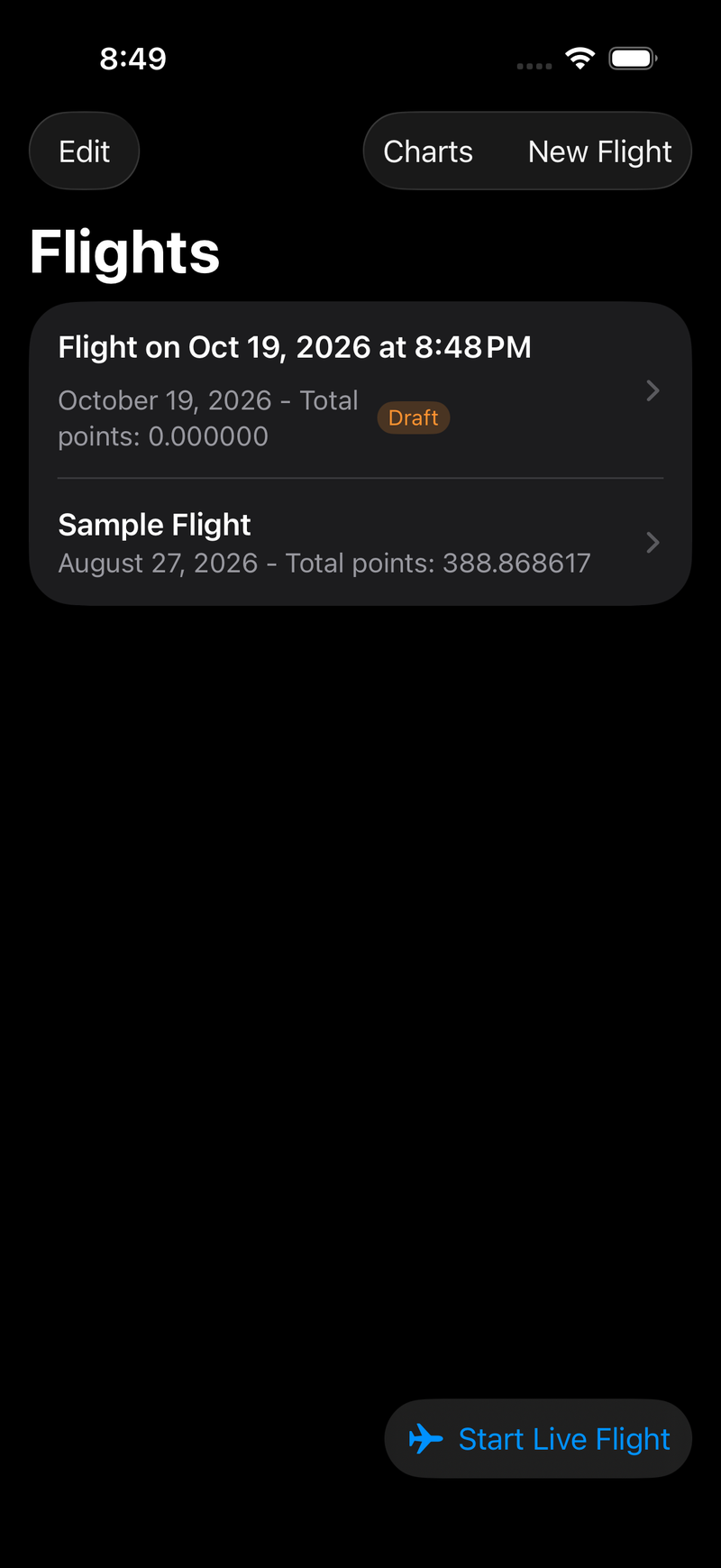
The Flights screen. The top row is a draft written automatically two minutes into a live flight; Charts opens the sectional chart library.
What you can do
| Action | How |
|---|---|
| Open a flight | Tap the row — it opens the results screen |
| Rename | Swipe left, tap Rename, type a new name, Save |
| Delete one | Swipe left, tap Delete — a full swipe deletes immediately |
| Delete several | Tap Edit at the top left, then use the delete controls |
| Re-grade | Open the flight, tap Edit, change inputs, Grade Flight |
| Export | Open the flight, Prepare JSON Export, then Share JSON |
New flights are named Flight on <date> <time>. Renaming is worth the five seconds — a list
of a dozen identically-shaped default names is no help a month later.
There is no undo and no trash. A deleted flight takes its track log and route with it. If a flight matters, export the JSON somewhere else first.
Drafts
A draft is a flight whose inputs were saved before it was graded. You get one by starting a New Flight, importing files or typing times, then backing out and choosing Save at the discard prompt — or from a live flight that couldn't be graded, and from the draft Navigator saves every two minutes while you fly.
Drafts keep everything — imported files, leg times, settings, secret checkpoints, fuel — and carry a score of zero until you open one, tap Edit, and grade it. Grading clears the draft flag.
This is the way to split preparation from scoring: load the files at the airport, grade the flight at the table.
Where the data lives
Everything is stored in a single flights.json file in Navigator's own Documents directory on
the device, written whenever anything changes. Inside it are your flights' scores, settings,
leg inputs, and the full bytes of every imported KML and FPL — which is what makes
re-grading and exporting possible offline, and also what makes the file grow with each flight
you keep.
Practical consequences:
- It is per-device. There is no iCloud sync and no account. A flight saved on your iPhone does not appear on your iPad.
- It is included in device backups. An iCloud or Finder backup of the device captures your flights; restoring that backup to a new device brings them back.
- Deleting the app deletes the flights. iOS removes the app's Documents directory with it.
- Large track logs add up. A long flight's KML can be several megabytes. Delete flights you have already exported if space gets tight.
Export anything you want to keep independently of the device. See file formats for what the JSON and KML exports contain.
Downloaded sectional charts are stored separately, in Application Support rather than Documents, and are excluded from iCloud backup — a chart library can run to gigabytes and is re-downloadable. A saved region is capped at about 1 GB, and tiles cached just by panning around the map are trimmed back to 500 MB, oldest first. Manage them from Charts; see sectional charts.